Updated
When you log in to myCliniBot, you land in the Notes workspace. It is the screen you will spend most of your time in: an input bar for describing the appointment, a procedure panel for telling myCliniBot what kind of note you need, and a feed of note cards showing everything you have generated. This guide walks through the whole journey, from first input to a finished note in your practice management system.
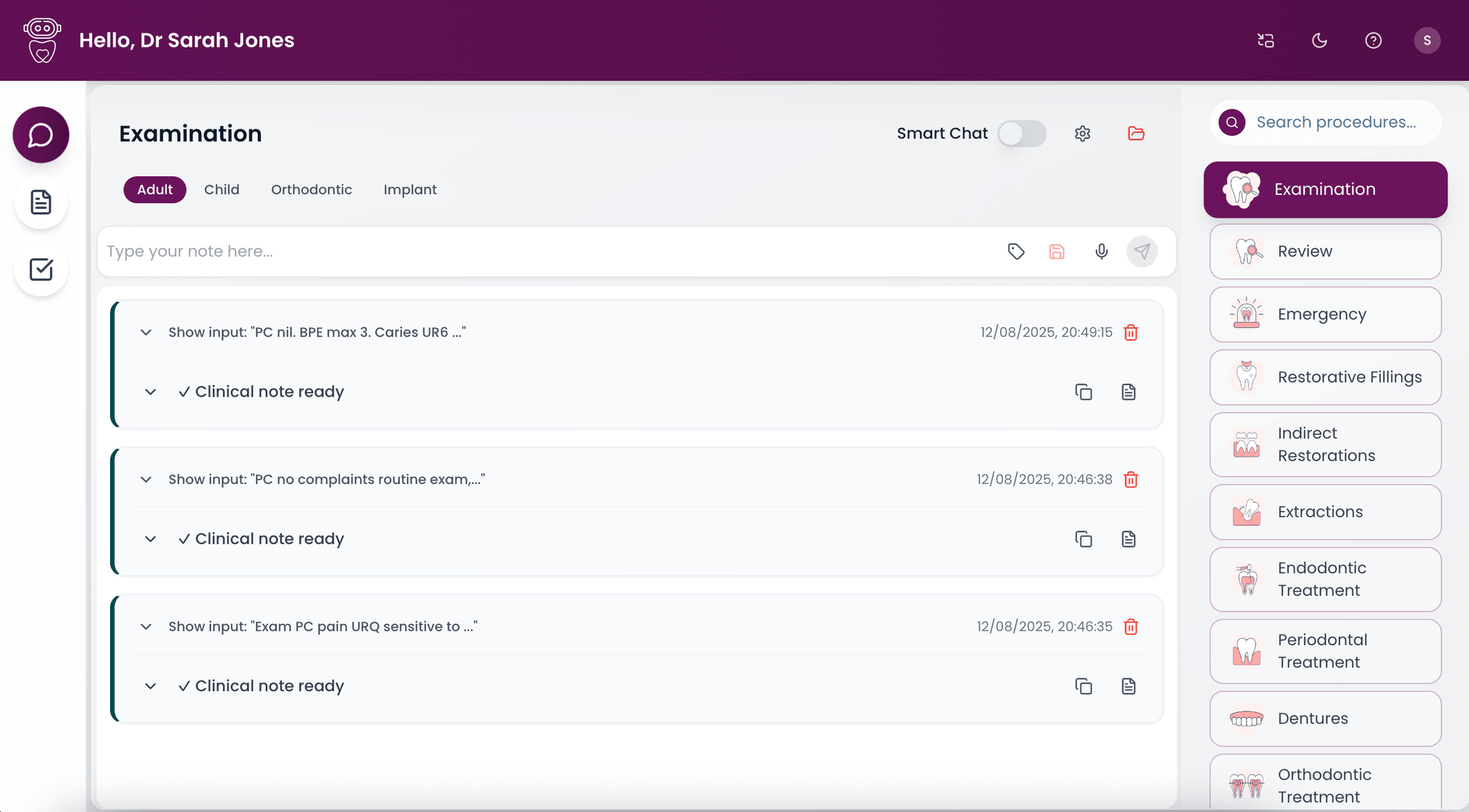
The workspace at a glance
The left sidebar holds three sections. Everything else on screen belongs to whichever one you are in.
- Notes. The central workspace where you create and review clinical notes.
- Letters. Where you write referral letters, patient letters and emails, often straight from a finished note.
- Tasks. A personal to-do list for referrals, reviews, follow-ups and lab chasing.
On the right sits the procedure panel. It controls what type of note myCliniBot writes, so it is worth checking before you start: Examination for adult, child, orthodontic or implant exams, Emergency for urgent visits, Restorative Fillings, Indirect Restorations, Extractions and so on. On desktop the panel is always visible. On mobile, or in Companion Mode, you reach it through the search icon.
Four ways to get information in
There is no fixed method to learn. You can mix all four in a single note and myCliniBot combines whatever it receives into one complete write-up when you press Send.
Type into the input bar
History, findings, radiograph notes, diagnosis, treatment plan, next visit. Shorthand is fine; complete sentences are not required.
Dictate with the microphone
Press and hold the microphone to record, release when you are done. Each recording can run up to five minutes, and multiple recordings are combined into one transcription.
Click through Smart Chat
A structured questionnaire for examinations and emergencies. Particularly useful when your nurse is entering details while you talk to the patient.
Tag with patient initials
Use the tag icon to label the note with the patient's initials. It keeps the workspace tidy and makes drafts far easier to find later.

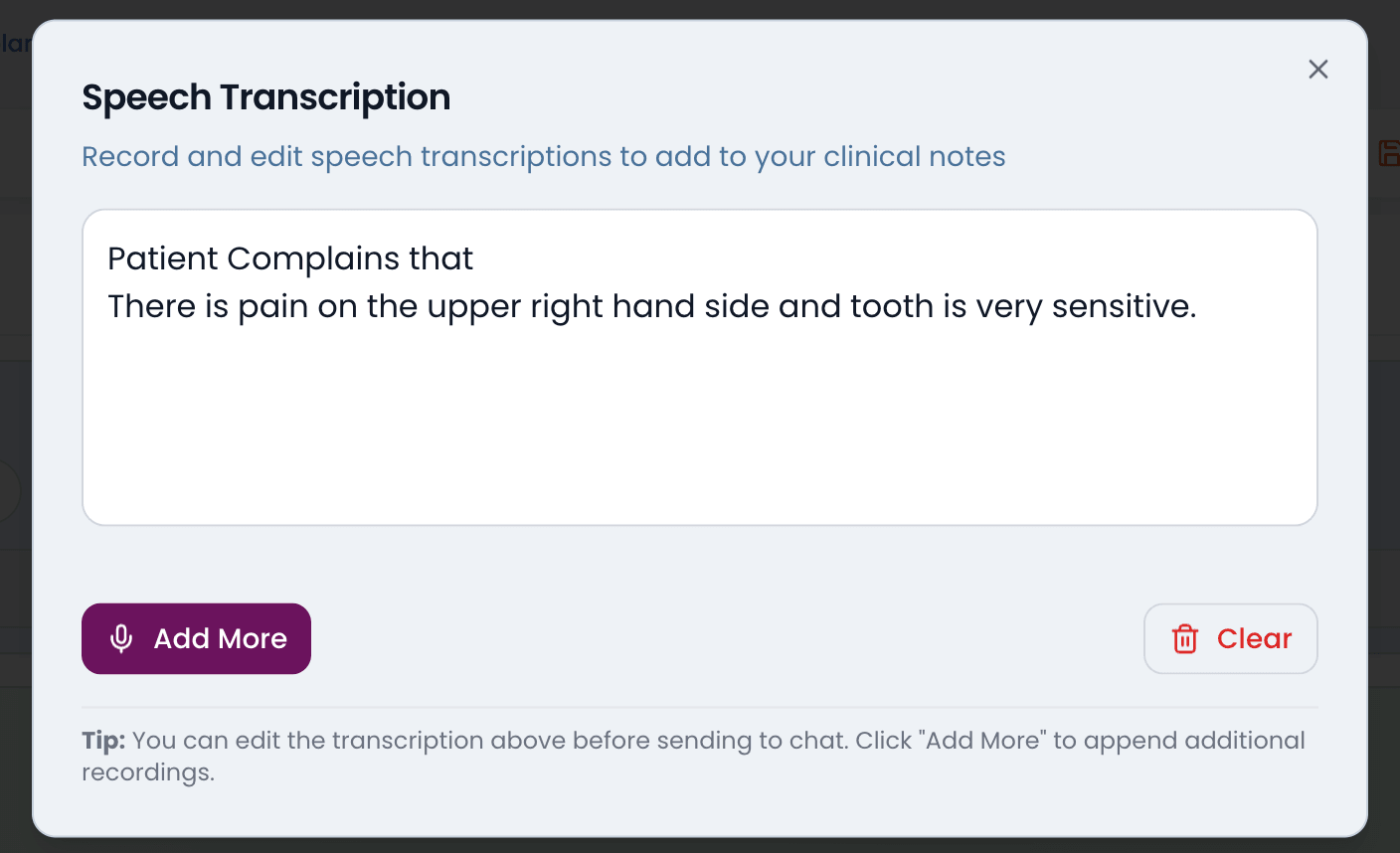
After a recording, the microphone icon turns green while your speech is processed. Click it to open the transcription and check what was captured. You can edit the text, record more, or clear it and start again. If you are ready to move on, just press Send; the transcription finishes processing and sends automatically.
Smart Chat, for structured examinations
Smart Chat is a guided template for examinations and emergencies. While you speak with the patient, you or your nurse select tags for symptoms and history and fill in short text fields, rather than free-typing everything. It expands to full screen when you want maximum visibility, and progress can be saved at any point and reopened exactly where you left off.
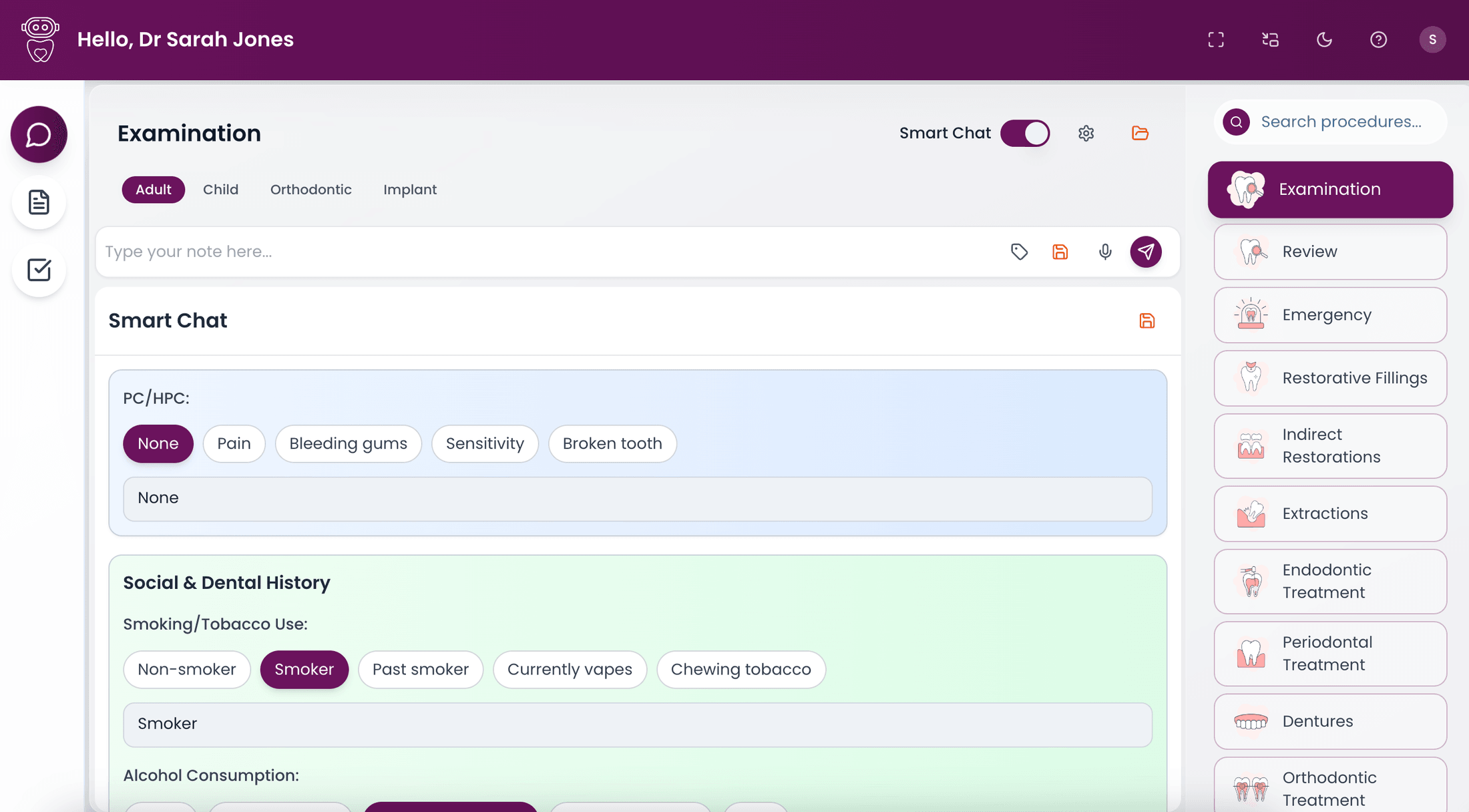
The structure is yours to change. Open the editor from the top corner of Smart Chat to add sections, edit tags, remove items or reorder the questionnaire. Changes save automatically and apply to every future Smart Chat session for that procedure type.
Save a draft, come back later
Drafts let you pause mid-note and pick up exactly where you left off. Tag the patient's initials, click Save, and the screen clears for the next patient. The draft keeps everything: typed text, transcriptions, Smart Chat progress, procedure type and tags.
- Drafts stay until you act. They do not expire. A draft remains in the drafts folder until you send it or delete it.
- Continue Edit restores the session. Open the drafts folder, click Continue Edit, and your input returns to the workspace exactly as you left it.
- Save as often as you like. Saving the same draft again simply updates it, which suits complex cases built up over several sessions.

Working with generated notes
Each generated note appears as a card showing your original input alongside the finished clinical note. From the card you can copy the note into your practice management system, turn it into a letter or email, expand it to review, or delete it. If something in the note is wrong, edit your input directly on the card and resend; if a generation ever fails, the resend icon tries again with the same input.

One more thing, and it matters. AI can make mistakes, so every note should be read before it enters the record. You remain the responsible clinician, and myCliniBot is built around that: nothing is filed anywhere until you have reviewed it and copied it across yourself.
Getting better output
The principle is simple: the better the input, the better the note. But better does not mean longer. myCliniBot already knows your defaults through your preferences, your usual materials, isolation and protocols, so you only need to state the core details and anything that deviated from routine.
- Trust your preferences. A routine filling can be as short as LR6 DO comp, 2ml Arti, NV recall. Your standard isolation, matrix and material fill themselves in.
- State the exceptions. Deviated from your default? Say so, and only that. Adding isolation HVS overrides your usual isolation for that note alone.
- Do not repeat yourself. Phrases like caries as mentioned link parts of your note together. The AI understands the reference without you re-listing teeth.
- Detail in, detail out. For a complicated extraction, a short summary of what happened, the fractured root, the instrument, the sutures, produces a note that documents the complication properly.
Common questions about writing notes
- Do I need to learn prompt writing?
- No. Write the way you already summarise appointments, shorthand included. Most dentists send their first real note within minutes of signing up.
- What happens to notes after 48 hours?
- They are automatically deleted. Your practice management system is the permanent record, so copy finished notes across as part of closing each appointment.
- Can I do an exam and a treatment in one note?
- Create separate notes, one per procedure type, and paste both into your practice management system. Each note comes back better when it has one job.
- Will generated notes sound like my own writing?
- Yes. myCliniBot works from your phrasing, your preferred materials and your way of documenting. Try the Turing test on the homepage and see if you can tell the difference.