Updated
Out of the box, myCliniBot writes good clinical notes. After twenty minutes in the Preferences panel, it writes your clinical notes: your anaesthetic and batch numbers, your shorthand expanded correctly, your bonding protocol appearing automatically whenever you mention the material. This guide covers that setup, and what changes when you work across more than one practice.
The Preferences panel
Open it from the Settings gear icon at the top of the Notes screen. The general settings come first: your nurse's name for Smart Chat entries, your preferred tooth notation such as FDI or Palmer, and your local anaesthetic defaults.
Local anaesthetic defaults
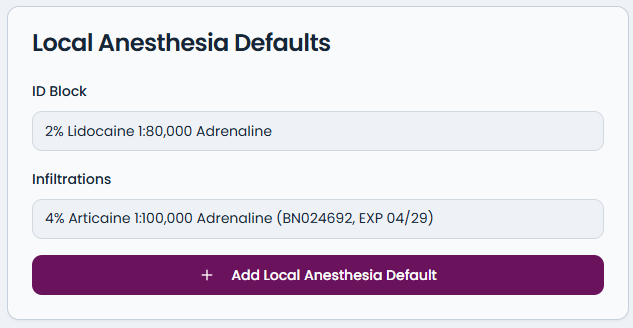
This is the single highest-value preference to set. Pre-set the anaesthetic you use for each injection type, including batch numbers and expiry dates if you record them, and shorthand does the rest. Type 2ml B infil and the note reads 2ml 4% Articaine 1:100,000 Adrenaline with the batch number and expiry, as an infiltration. All the regulatory detail, none of the typing.
Abbreviations and templates
- Teach it your shorthand. Add the abbreviations you already use and they expand in every generated note. OCC becomes occlusal, and OCC Class 1 comes out as occlusal Class 1 without a second thought.
- Edit the templates. Every procedure template can be customised. The safe approach is to merge your own phrasing into the existing template rather than replacing it wholesale, and to keep the insert markers in place so generated content lands where it should. Reset to Default is always there if an edit goes wrong.
Custom preferences: your protocols, automatically
Custom preferences are where the setup starts to feel personal. Record your standard procedures and discussion guides once, and they appear in relevant notes automatically. Save your Emax surface preparation, 5 percent hydrofluoric acid for 20 seconds, then Monobond, and any note mentioning an Emax crown includes it. Save your whitening conversation, and the discussion section writes itself the way you actually say it.

- Material procedures. Surface preparation steps, bonding protocols and specific techniques for the materials you use.
- Discussion guides. Your standard patient conversations and consent discussions, phrased your way.
- Clinical statements. Standard phrases and approaches you want appearing consistently in your documentation.
Working across more than one practice
Plenty of dentists split their week across locations, and myCliniBot is built for it. Add a second practice from Settings under Practice Management, and your treatment preferences are copied across so you only adjust what differs: a different nurse, different materials, different defaults per site.
- Complete data isolation. Notes, drafts, consents, letters and patient journeys belong to the practice where they were created and never cross the boundary. Switch practices and you see only that location's data, which is exactly what GDPR expects.
- Shared templates. Consent and letter templates work across every practice, so the library you build once serves all your locations, under a single login.
- Automatic switching. Set a weekly schedule, Monday at one practice, Tuesday at another, and myCliniBot opens in the right practice when you log in. Manual switching is always available and holds for the session.
Common questions about setup
- How long does setup take?
- The essentials, nurse name, notation and anaesthetic defaults, take a few minutes during onboarding. Abbreviations and custom protocols are best added gradually as you notice yourself typing the same thing twice.
- Can each practice have different materials and defaults?
- Yes. Nurse names, materials, anaesthetic defaults and clinical protocols can all differ per location, and the right set applies automatically when you switch.
- What happens if I stop working at a location?
- Archive the practice rather than deleting it. The historical data is preserved, and your remaining practices are unaffected.